Structure
The structure of a For Next loop is as follows.
For counter = start to end [step]
	Set of Instructions
Next counter
Counting From 1 to 10 Example
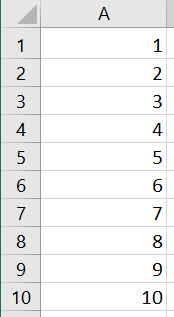
This simple For Next procedure enters values 1 to 10 in column A. Each time the loop repeats the value x increases by 1.
Sub CountOneToTen()
Dim x As Byte
For x = 1 To 10
    Cells(x, 1) = x
Next x
End Sub
The code above relates to the data shown below.
Twelve Times Table (Using Step) Example
In this For Next example we use a Step value of 12. So rather than incrementing by 1, the counter will increment by 12.
Sub TwelveTimesTable()
Dim x As Byte
Dim y As Byte
For x = 12 To 144 Step 12
    y = x / 12
    Cells(y, 1) = x
Next x
End Sub
The code above relates to the data shown below.

Full TimesTable (Nested For Next) Example
In this For Next example we need to increment two variables: x and y so that we can produce a complete times table. On the first loop of x, y will equal 1, then 2, then 3, then 4 and so on up to 12. On the second loop of x the same thing will happen. This will keep going for 12 loops of x.
Sub FullTimesTable()
Dim x As Byte
Dim y As Byte

For x = 1 To 12
    For y = 1 To 12
        Cells(x, y) = x * y
    Next y
Next x

Range(Cells(1, 1), Cells(x, y)).Columns.AutoFit

End Sub
The code above relates to the data shown below.

For Next Loop With User Input Example
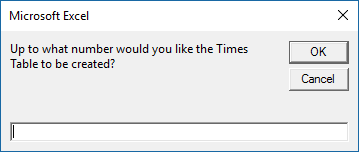
This For Next example is similar to the last example, except x and y’s maximum value is set by the user. When the procedure runs, the following Input Box is displayed, allowing the user to specify a value. So if the user entered 15, the For Next loop would loop 15 times for both x and y.
Sub FullTimesTableWithUserInput()
Dim x As Long
Dim y As Long
Dim UserInput As Long
UserInput = _
InputBox("Up to what number would you like the times table to be created?")

For x = 1 To UserInput
    For y = 1 To UserInput
        Cells(x, y) = x * y
    Next y
Next x

Range(Cells(1, 1), Cells(x, y)).Columns.AutoFit

End Sub
Shade Alternate Rows Example
This For Next example changes the background colour of alternate rows within a database. A step value of 2 is used to achieve this.
Sub ShadeAlternateRows()
Dim NumberOfRows As Long
Dim x As Long
NumberOfRows = Range("A1", Range("A1").End(xlDown)).Count

For x = 2 To NumberOfRows Step 2
    Cells(x, 1).Resize(1, 5).Interior.Color = vbYellow
Next x

End Sub
The code above relates to the data shown below.

Exit For Loop Example
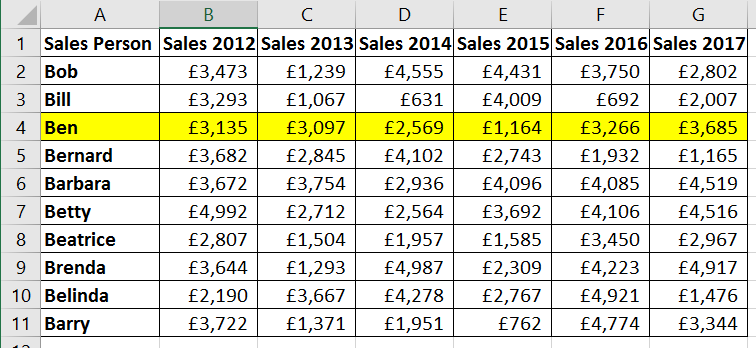
Sometimes you just want to loop through a range of cells but stop looping once a specified value is found. If this is the case you can use the Exit For statement. In the example below the For Next loop, loops through the sales people’s names until it finds the name specified by the user. Once it finds the name, the For Next loop is exited and the remainder of the code can commence.
Sub ExitForExample()
Dim x As Long
Dim SalesPersonSales As Range
Dim TotalSales As Currency
Dim NumberOfRows As Long
NumberOfRows = Range("A1", Range("A1").End(xlDown)).Count
Dim SalesPersonsName As String

'Ask for the name of the sales person
SalesPersonsName = InputBox("Please enter the name of the sales person")

'Loop through the list of sales people until name found
For x = 2 To NumberOfRows
    If Cells(x, 1) = SalesPersonsName Then Exit For
Next x

'When name found...

'Clear exiting row formats
Range("A1", Range("A1").End(xlToRight).End(xlDown)).Interior.Color = xlNone
'Format the sales persons row with yellow background
Cells(x, 1).Resize(1, 7).Interior.Color = vbYellow
'Specify the range of cells to add up
Set SalesPersonSales = Cells(x, 1).Offset(0, 1).Resize(1, 6)
'Calculate the total sales
TotalSales = WorksheetFunction.Sum(SalesPersonSales)
'Tell the user what the total sales is
MsgBox SalesPersonsName & " made a total sales of " & Format(TotalSales, "Currency")
End Sub
The code above relates to the data shown below.
Format Cells Based on Conditional Criteria
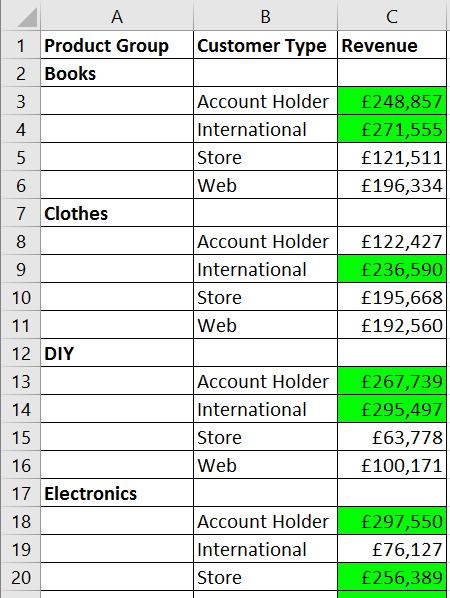
With this For Next example we are formatting sales values that have met a sales target. The maximum value for x is the last row number within our database. In previous examples where we had contiguous values we could calculate x using this line of code:
NumberOfRows = Range("A1", Range("A1").End(xlDown)).Count
However in this example our data is not contiguous, so we have to approach it in a slightly different way: we use the End property to move up from the last cell in the worksheet.
LastRow = Cells(Rows.Count, 2).End(xlUp).Row
Here is the code for this macro.
Sub FormatCellsInListWithGaps()
Dim LastRow As Long
Dim x As Long
'Work out which is the last cell used in column B
LastRow = Cells(Rows.Count, 2).End(xlUp).Row
'Clear any existing formats in column C
Range("C3", Cells(LastRow, 3)).Interior.Color = xlNone

For x = 3 To LastRow
       If Cells(x, 3) > 200000 Then Cells(x, 3).Interior.Color = vbGreen
Next x

End Sub
The code above relates to the data shown below.
Delete Blank Rows Example
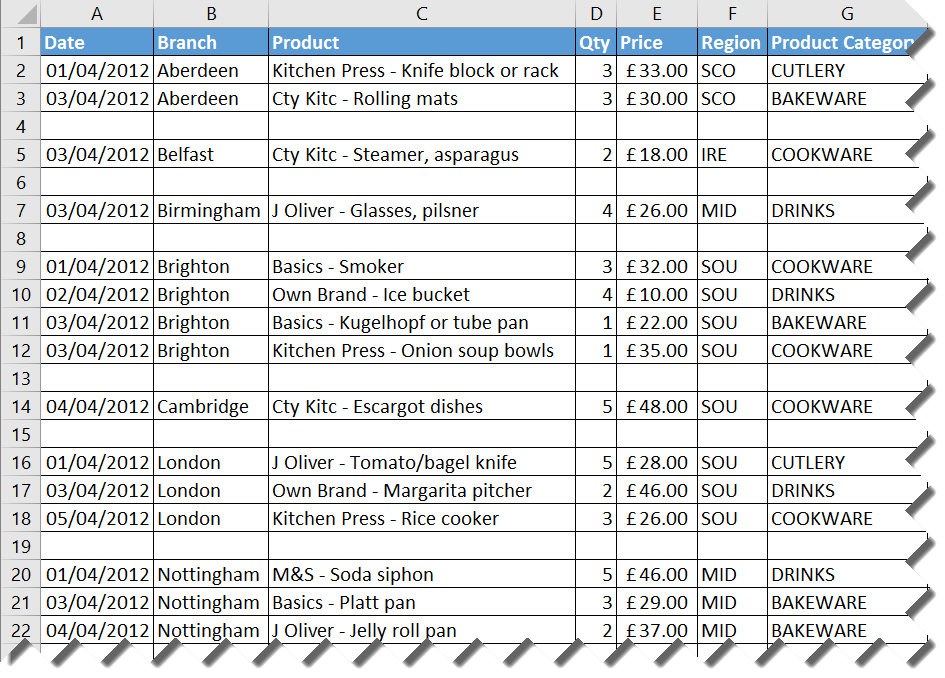
This For Next example deletes blank rows within a database. The worksheet functions COUNTA is used to count the number of cells that contain a value. If the row total is 0, then the row gets deleted.
Sub DeleteBlankRows()
Dim NumberOfRows As Long, x As Long
Dim CurrentRow As Range
NumberOfRows = Cells(Rows.Count, 1).End(xlUp).Row

For x = 1 To NumberOfRows
    Set CurrentRow = Cells(x, 1).EntireRow
    If WorksheetFunction.CountA(CurrentRow) = 0 Then CurrentRow.Delete
Next x

End Sub
The code above relates to the data shown below.
Investment Example
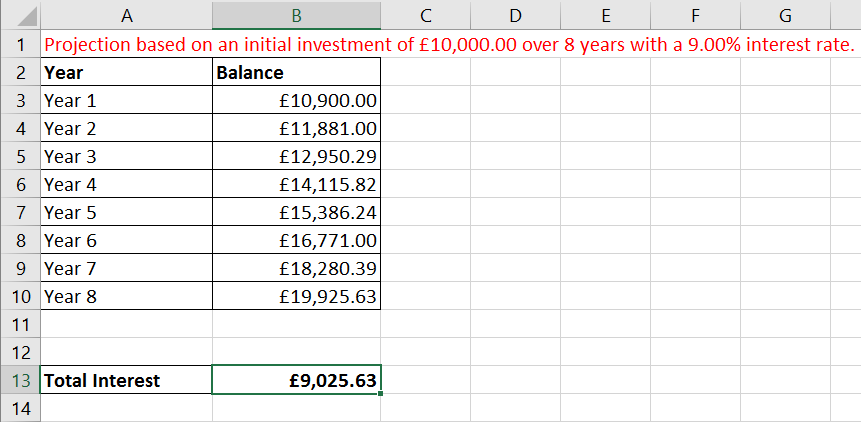
This example creates a simple projection on investment. See comments for explanation.
Sub Investment()
Dim Investment As Double
Dim Term As Integer
Dim Rate As Single
Dim ws As Worksheet
Set ws = ActiveSheet
'Ask user series of questions about investment
Investment = InputBox("What amount are you going to invest?")
Term = InputBox("For how many years will you invest?")
Rate = InputBox("What's the interest you will get?")
'Delete previous projections
ws.UsedRange.Clear
'Add headings and apply formatting
Range("A1") = "Projection based on an initial investment of " & _ Format(Investment, "Currency") & _
" over " & Term & " years with a " & Format(Rate / 100, "Percent") & _
" interest rate."
Range("A1").Font.ColorIndex = 3
Range("A2") = "Year"
Range("B2") = "Balance"
Range("A2", "B2").Font.Bold = True
With Range("A2", "B" & Term + 2)
    .NumberFormat = "£#,##0.00"
    .Borders.LineStyle = xlContinuous
End With
'Loop through to calculate balance for each year of investment
For x = 3 To Term + 2
    Investment = Investment * (1 + Rate / 100)
    Cells(x, 1) = "Year " & x - 2
    Cells(x, 2) = Investment
Next
'Create and format a total row label
With Cells(Term + 5, 1)
    .Value = "Total Interest"
End With
With Range(Cells(Term + 5, 1), Cells(Term + 5, 2))
    .Font.Bold = "True"
    .Borders.LineStyle = xlContinuous
End With
'Calculate the total interest from investment
With Cells(Term + 5, 2)
    .Value = Cells(Term + 2, 2) - Range("B3")
    .NumberFormat = "£#,##0.00"
End With
End Sub
The code above relates to the data shown below.