I get this question a lot. Can you edit a PDF in Word? The answers has always been no. Now the answer is “sort of”. Word 2013 will convert your PDF to a Word document which you can then convert back to a PDF. But it doesn’t do a very good job of it. The video above demonstrates some of the problems you might encounter. The instructions below also cover the the issue.
You open a PDF in Word 2013, just like you would open any document. This is the message you get when you do. Click on OK and you are on your way.

Take a look at my example. This was a document created in Word, converted to a PDF and then opened in Word – I think we are going around in circles here!
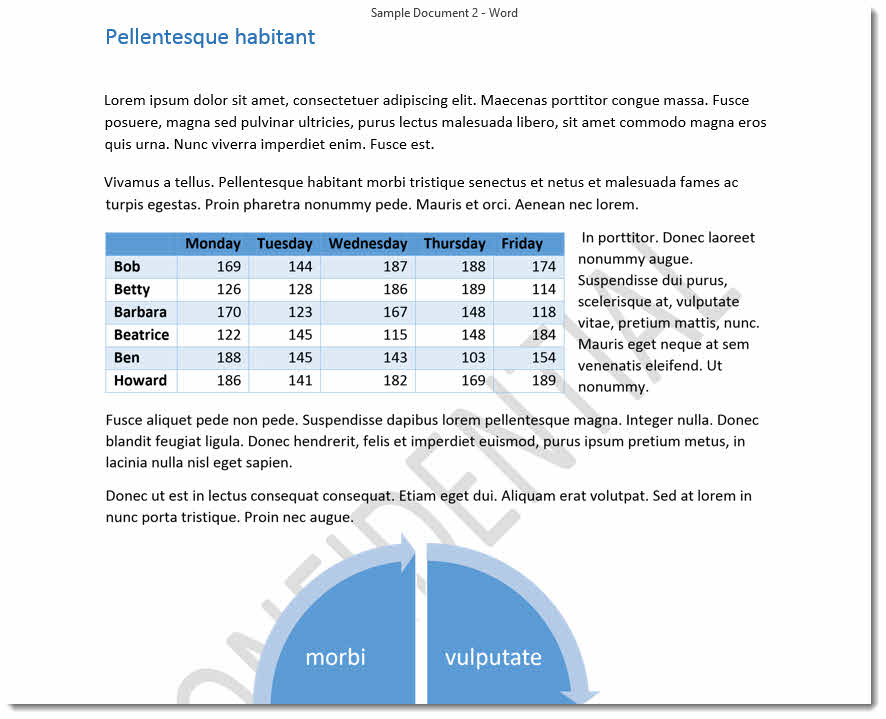
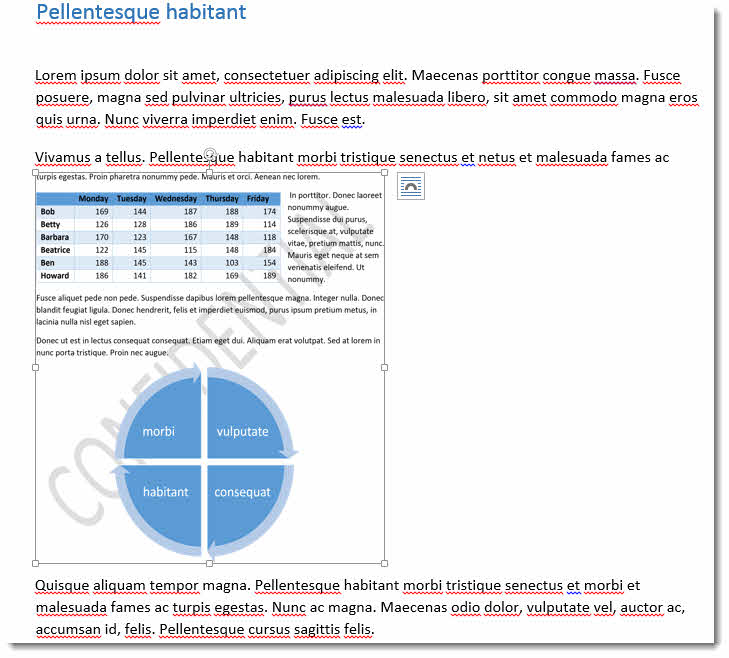
Now the heading and the first paragraph are fine – they have both converted quite nicely to text. After that we hit problems though. Word hasn’t coped very well with the confidential watermark. Because there is effectively an image in the background, all the text and the table in front of the watermark has been converted to a single image. To prove the point, I’ve resized the image (see below).
On the second page of the document, I’ve got the same table but above the watermark. This time it converted to an editable table just fine.
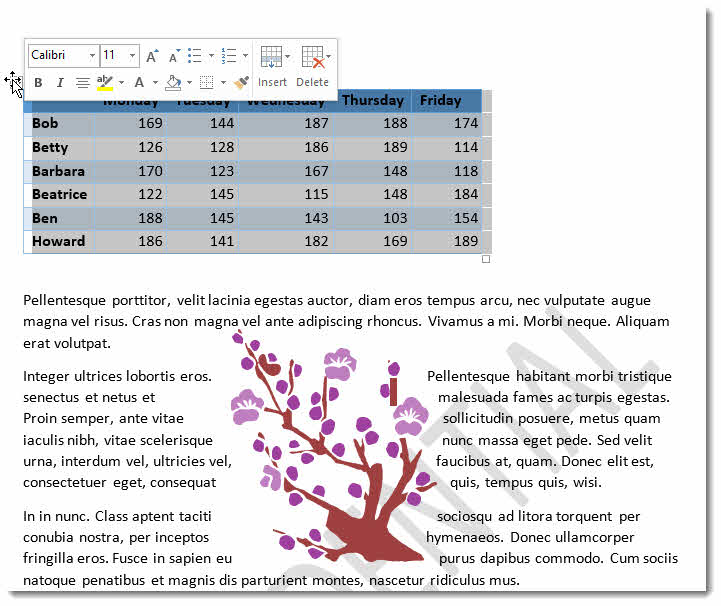
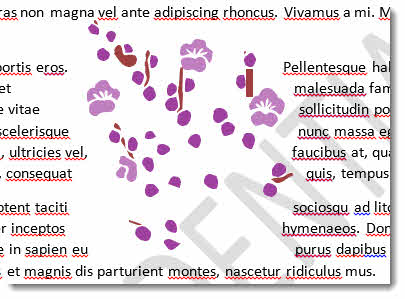
Now, however, I’ve got problems with the text which is wrapped around the image.
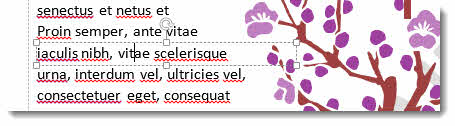
Each wrapped line is contained within its own text box. How annoying is that?
Also the image has been broken up into separate elements. So when I think I am deleting, moving or resizing the whole image I am only editing part of it.
So by no means perfect, but better than nothing I suppose.